
How to Add an Offer to Google Business Profile and Advertise on Google Maps
A special offer or promotion is one of the most powerful tools for increasing the click-through rate (CTR) of a Google Maps listing. In Google Business Profile, offers are created through Add update → Add offer. This free format allows you to specify dates, a promo code, a URL with UTM parameters, and a call-to-action button. For paid promotion, you can add an offer using the Promotion asset in your Google Ads account.
Imagine a customer choosing between two businesses on Google Maps. Two dental clinics or auto service centers are located in the same neighborhood, and both have the same 4.8 rating. However, one listing simply displays its opening hours, while the other features a prominent offer: "20% off your first visit with promo code GOOGLE20 through the end of the month." Most users will choose the second business.
A special offer attracts attention, lowers the barrier to a first visit, and gives customers a reason to call right away. Let's look at how to create an offer for free through Google Business Profile and boost its reach with paid advertising.
Organic Offer vs. Promotional Offer in Google Ads
| Parameter | Offer in the Business Profile (Google Updates) | Google Ads Promotion on Maps |
|---|---|---|
| Cost | Free | Pay per click or conversion (CPC) |
| Where it appears | Prominently displayed within the business profile | In the top section of Google Maps search results, next to a price tag icon |
| Validity period | Strictly according to the specified start and end dates | While the campaign is active or according to the promotion schedule |
| Additional fields | Photo, promo code, website link, full terms and conditions | Discount amount or percentage, occasion (holiday), direct link |
How to Add a Free Offer to Google Business Profile
Step 1. Open the Post Creation Window
- Open Google Search while signed in to your business account.
- Enter the search query
my businessor your exact brand name. - In the quick-action menu, click Add update (Add post).
- In the window that opens, select the Add offer tab.
Step 2. Fill in the Key Offer Details
1. Offer Title
This is the main headline that catches the customer's eye. The limit is 58 characters. Keep it concise and emphasize a specific, tangible benefit -
- Good - "$15 Off an Oil and Filter Change," "Get a Second Sushi Roll Set Free on Weekdays."
- Bad - "Special Offer," "This Month's Promotions."
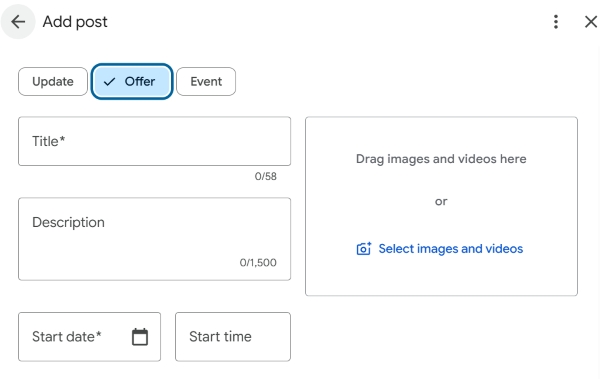
2. Promotion Dates
Set the exact start and end dates for the promotion. Once the offer expires, Google will automatically stop displaying it, helping prevent customer complaints about outdated discounts.
3. Description
Explain the offer's terms in plain language. Specify which services or product categories qualify for the discount and whether it applies to card payments or only to appointments booked in advance.
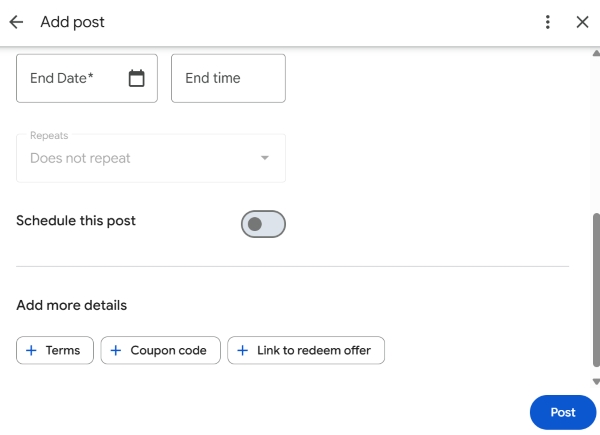
4. Coupon Code
Enter a unique promo code, such as MAPS2026 or STARTG. This is an important analytics tool: administrators and cashiers can easily record whether a customer found your business through Google Maps.
5. URL with UTM Parameters
Insert a direct link to the page on your website describing the offer. Make sure to tag the URL with UTM parameters -
https://vash-site.ru/promo-page/?utm_source=google_maps&utm_medium=organic&utm_campaign=offer_discount1000
6. Terms and Conditions
Add a brief legal disclaimer, such as: "Cannot be combined with other special offers from the company. Limited to one offer per customer."
[Placeholder for screenshot - Completed promo code, link, and date fields in the offer creation window]
How to Add a Promotion to Paid Google Ads Campaigns on Maps
If you're running local advertising or Performance Max campaigns, you should include your promotion in the ad snippet displayed in Google Maps search results:
- Sign in to your Google Ads account.
- In the left-hand menu, go to Ads & assets → Assets.
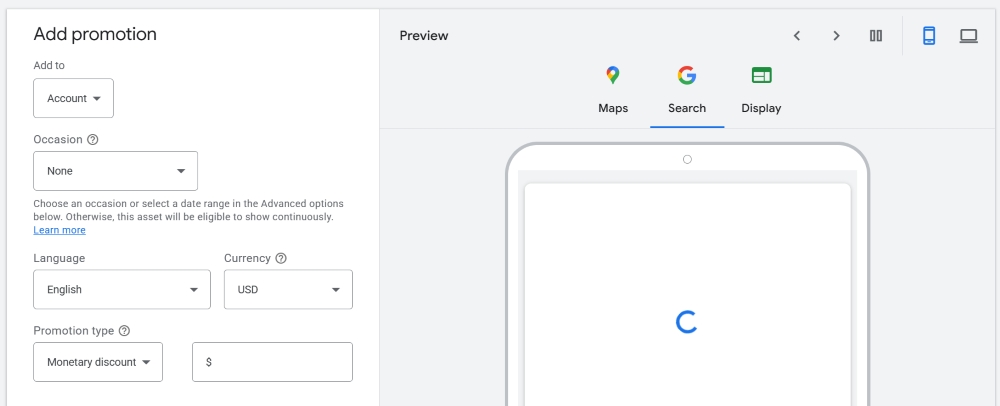
- Click the blue plus button and select the asset type Promotion.
- Choose the discount type: monetary (for example, $5 off) or percentage-based (15% off).
- Select the language and currency, then enter the destination URL of the page featuring the offer.
- Save the asset at the campaign level and configure geographic targeting around your business location.
Important - The promotional image should be clear and free of tiny, unreadable text and watermarks. Google reviews promotional images carefully. If text covers more than 20% of an image, the post may be rejected during moderation. The best option is to upload a high-quality photo showing the service being performed or a satisfied customer.
How to Measure the Results of Your Promotion
For an accurate assessment of results, use these three metrics together:
- Google Business Profile performance data - In the "Performance" section, check how the number of calls and website visits changed after the post went live.
- Google Analytics 4 - Track sessions and form submissions using the unique UTM parameters added to the offer URL.
- Promo code tracking in your CRM - Record the number of actual purchases made using the promo code in your point-of-sale system while the offer is active.
Checklist: Launching a High-Converting Google Maps Offer
Frequently Asked Questions
How long does an Offer remain visible on a Google Maps business profile?
An Offer post remains active for exactly the period specified in its start and end date fields. Unlike regular posts, which move further down the feed over time, an active special offer remains prominently displayed on the business profile throughout its validity period.
Will an offer published in Google Business Profile automatically appear in Google Ads?
For Google Maps advertising campaigns, we recommend also adding the dedicated Google Ads Promotion asset. This allows the price tag icon and discount text to appear directly in the top advertising section of Google Maps search results.
- Promotions help your business stand out from competitors with similar ratings and encourage customers to call.
- Use the Offer format in Google Updates to keep the promo code, terms, and website link available throughout the promotion period.
- Always use UTM parameters and promo codes to measure exactly how much net profit your post generates.
Not sure which offer will work best for your target audience?
Tell us about your business in the comments, and we'll help you create an attractive special offer and choose the best format for Google Maps.