
Guide to Adding a Business to Google Maps
How to Create a Google Business Profile from Scratch
You can add your business to Google Maps for free through Google Business Profile. The key is to prepare the right Google account, check for existing duplicate listings, use your actual business name without keyword stuffing, select the most accurate primary category, and complete verification using SMS, email, or a video recording of your business premises.
For local businesses, having a presence on Google Maps is a fundamental source of free customer traffic. Every day, people search for nearby cafes, tire shops, dental clinics, and appliance repair services close to their homes or workplaces. If your business is not on Google Maps, nearby competitors may capture this potential customer traffic instead.
Creating a listing takes around 15 minutes, but mistakes at the beginning, such as choosing the wrong business type or stuffing keywords into the business name, can result in a rejected application or a suspended profile.
What to Prepare Before Registering
- A permanent business Google account. Do not register your profile using an employee's or agency's personal email address. Create a separate Google account for your business or use a corporate email account through Google Workspace.
- Accurate contact details. Provide a direct business phone number and a link to your active company website.
- Photos of your business sign and premises. These may be needed if Google requests video verification or a manual review.
Comparing the Two Types of Google Business Profiles
When creating your profile, Google will ask how you interact with your customers. Choose the model that best describes your business:
| Feature | Storefront business | Service-area business |
|---|---|---|
| Examples | Shops, clinics, cafes, salons, service centers, offices | Plumbers, cleaning services, towing companies, home repair services |
| Address display | Exact street address with the map pin positioned at the building entrance | The address is hidden from customers, and the service area is displayed instead |
| Business signage requirements | Permanent signage is generally required for a business that serves customers at its location | Signage is not required at a hidden business address; a home address should not be displayed if customers are not served there |
| Directions button | Available, directing customers to the business location | Directions to the hidden address are not displayed; customers can contact the business instead |
Step-by-Step Guide to Adding Your Business
Step 1. Check Whether Your Business Is Already on Google Maps
Open Google Maps and search for your business name and address. Google may already have created a listing using information from public directories or user contributions. If you find an existing listing, do not create a second one. Instead, click Own this business? or the available ownership option and request access to the profile.
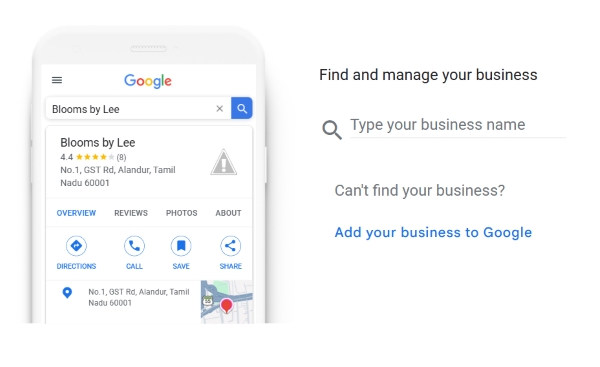
Step 2. Start Registering with Google Business Profile
- Visit business.google.com/create.
- Sign in using your business Google account.
- Enter your business name.
Important - Enter your business name exactly as it appears on your actual business signage and in your real-world branding (for example, "East Auto Repair"). Do not add advertising slogans or keyword phrases such as "East Auto Repair Automatic Transmission Repair Oil Change Cheap Prices Moscow". Keyword stuffing violates Google's guidelines and may lead to profile suspension.
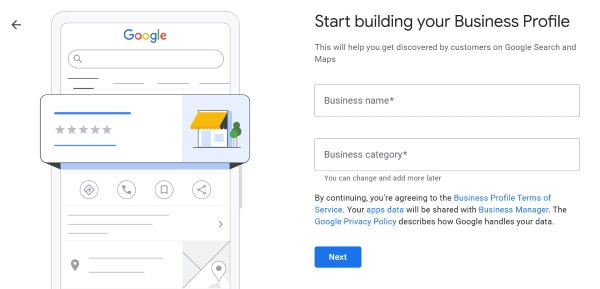
Step 3. Choose Your Primary Business Category
Start typing your business type and select the most accurate option from Google's category list, such as "Dental Clinic," "Coffee Shop," or "Auto Repair Shop." You can add additional categories later in your profile settings.
Step 4. Enter Your Address
- If customers visit your premises in person, select Yes when asked whether you have a physical location where customers can visit.
- Complete the address fields, including country, city, street, building number, and postal code.
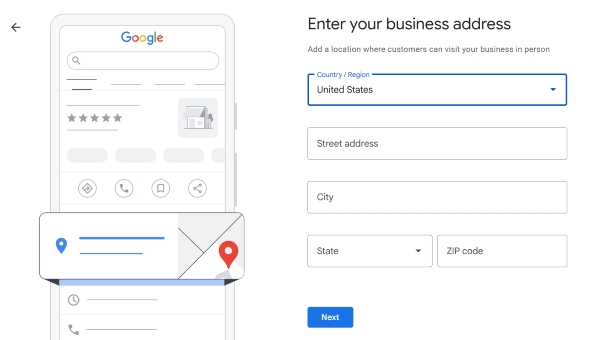
Step 5. Add Your Contact Details
Enter your business's primary phone number and website address. If your website is already associated with Google Search Console under the same Google account, this may help Google establish a connection between your business and website, although it does not guarantee automatic verification.
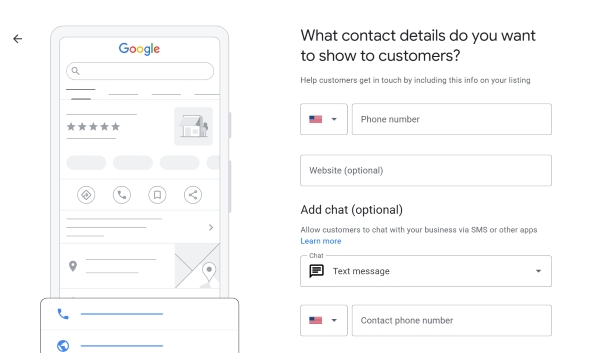
Verifying Your Business Profile
After you enter your contact details, Google will offer one or more available verification methods:
- Phone call or SMS - If available, Google will send a verification code to your business phone number.
- Business email - If offered, a verification message or code may be sent to an email address associated with your website's domain, such as
This email address is being protected from spambots. You need JavaScript enabled to view it. - Video recording of your location - Record one continuous video using your smartphone, showing the street address sign → business sign on the facade → unlocking the entrance with a key → the working area inside the premises.
Once you complete the required verification method and Google approves it, your profile will be verified and can appear in Google Search and Google Maps. Visibility may take additional time, and verification does not guarantee a particular search ranking.
What to Do Immediately After Creating Your Listing
- Set your opening hours - Enter accurate hours for every day of the week and add special hours for public holidays when necessary.
- Upload your first 5–7 photos - Include a clear photo of the exterior from the street, a clean interior, the waiting area, and examples of your work.
- Complete the Services section - Add your main procedures or services and include starting prices where appropriate.
- Copy your review request link - Use the Ask for reviews option in your profile management panel, then share the link with your first customers.
Checklist: Adding Your Business Correctly
Frequently Asked Questions
Does it cost money to create a Google Maps business listing?
Creating a Google Business Profile, managing the listing, completing verification, and appearing on Google Maps are free. Google does not charge businesses to create or maintain a standard business profile.
How long does it take for a business to appear on Google Maps after registration?
The time varies depending on the verification method and Google's review process. If verification is completed quickly, the profile may become visible shortly afterward. Video verification and manual reviews can take longer, and Google does not guarantee a fixed approval timeframe.
Summary
- Adding your business to Google Maps is a free and fundamental step in local marketing.
- Follow Google's guidelines from the start: avoid keyword stuffing in your business name and position the map pin accurately at the entrance.
- Once your profile is verified, add photos, opening hours, and your products or services to make it more useful and appealing to potential customers.
Having trouble registering your business or verifying your location on Google Maps?
Leave a comment with your business type and city. We'll help you choose the right category and understand how to complete Google's verification process.