
How to Become the Owner of a Google Maps Business Profile If You Don't Have Access to the Account
If your business is already listed on Google Maps but you have lost access to it, you must not create a duplicate. Find the listing on Google Maps, click Own this business? and submit an official request to the current owner. If there is no response within 3 days, Google will allow you to verify your ownership - via SMS, work email, or a video recording of the location.
Your business is already collecting customer reviews on Google Maps, but you cannot respond to negative feedback, update the phone number, or correct outdated business hours. The reason is simple - the listing was registered by a former marketer, an agency, or automatically generated by Google using publicly available information.
If you do not have the login and password for the account used to manage the listing, you must not create a new profile from scratch. You need to request access to the existing profile.
What Is the Difference Between Roles in Google Business Profile?
Managing a business listing requires a clear hierarchy of permissions. Before requesting access, determine which level of access you need.
| Role | Edit Business Information and Photos | Respond to Reviews | Assign Managers | Delete Profile or Change Ownership |
|---|---|---|---|---|
| Primary Owner | Yes | Yes | Yes | Yes (only this role) |
| Owner | Yes | Yes | Yes | No |
| Manager | Yes | Yes | No | No |
Important - A business must always have a Primary Owner. If a contractor or employee leaves, only the Primary Owner can revoke their access with a single click.
Step-by-Step Guide - How to Request Access to an Existing Listing
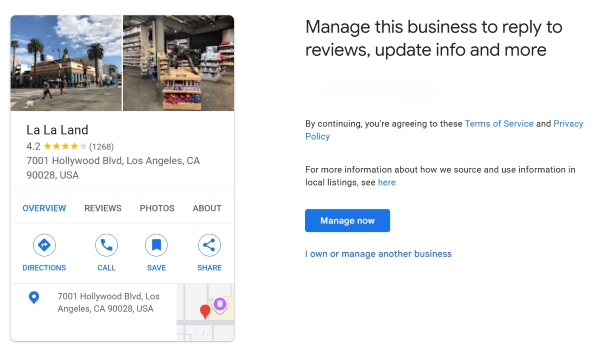
Step 1. Find Your Business
- Open Google Maps or Google Search.
- Sign in with your Google account (preferably using your company's domain).
- Enter the exact business name and address.
- On the business listing, click Own this business? (in some interfaces, this may appear as Manage this business).

Step 2. Submit an Access Request
If someone has already verified the listing, Google will display a partially hidden email address, for example - ma***@gmail.com.
- Click Request Access.
- From the dropdown menu, select the access level - Primary Owner.
- Specify your relationship to the business - Owner or Employee.
- Enter your contact phone number and submit the request.
What Happens After You Submit the Request?
The current owner has exactly 3 days (72 hours) to respond to the email from Google. After that, one of three scenarios will occur.
Scenario A - The Request Is Approved
You will receive an email notification, and the profile will immediately appear in your management dashboard.
Scenario B - The Owner Does Not Respond Within 3 Days
This is the most common scenario when employees leave a company. After 72 hours, sign in to Google Business Profile using the same account. The request status will change, and a Verify button will appear.
You will be offered one of the standard verification methods -
- A phone call or SMS to the business's phone number.
- An email sent to the company's email address.
- A video recording showing the business sign, entrance, and business documents.
Scenario C - The Owner Clicks "Decline"
This can happen when there is a dispute with former contractors. Do not panic - you can appeal the rejected request.
- In the rejection email, click the link to submit an appeal.
- Complete the form for Google Support.
- Attach proof of ownership - a commercial lease agreement, business registration certificate, or recent utility bills showing this address.
Checklist - Preparing for Video Verification
If Google requests video verification, prepare in advance. The video must be recorded in the mobile app in one continuous take without cuts -
Common Mistakes Explained
- Creating a duplicate listing. Business owners often do not want to wait 3 days and create a new listing at the same address. As a result, Google may suspend both listings for violating its policies, and the old reviews and ratings may be lost permanently.
- Using an intern's personal email. Link the listing to the company's central email account so that access is not lost when staff members change.
- Ignoring two-factor authentication. After gaining access, immediately enable 2FA on the account used to manage the profile to reduce the risk of losing control of the listing.
Frequently Asked Questions
Can I find out the current owner's full email address?
No. For security reasons, Google displays only the first two characters and the email domain.
What should I do if the business no longer operates at this address?
Do not request ownership. On the business listing, click Suggest an edit and select the status Closed permanently or Moved to a new location.
Tips
- Do not create duplicate listings - claim the existing listing instead.
- Request Primary Owner status right away.
- Wait 3 days - if there is no response, verify your ownership directly via SMS or a video recording of the location.