
How to Help Customers Leave Reviews on Google Maps
Satisfied customers rarely leave reviews on their own — they don't want to spend time finding your listing on Maps, signing in, and putting their thoughts into words. To consistently receive honest 5-star reviews, make the process as easy as possible: create a direct short link using the Ask for reviews button, print a QR code for your checkout counter or table tents, use NFC tags, and teach employees to ask for feedback when customers are most delighted with their experience.
The paradox of customer service is that an unhappy customer will find your business on the map in a minute, even if it's buried deep in a directory. A happy customer, on the other hand, will thank you in person, promise to "definitely write something," and forget all about it 10 minutes after walking out the door.
To make the flow of positive reviews steady and predictable, businesses need to create a simple, fast path from service delivery to a single tap on a smartphone. Let's look at effective tools, scripts, and the technical limitations of Google Maps.
Comparing Review Collection Tools
| Tool | Where It Is Used | Review Conversion Rate | Implementation Difficulty |
|---|---|---|---|
| Direct Google review link | Messaging apps (WhatsApp, Telegram), SMS campaigns after a purchase | 8% – 15% | None (built into the dashboard) |
| QR codes on counters and tables | Reception desks, order pickup areas, receipts, business cards for service providers | 5% – 12% | Printing promotional materials |
| NFC signs and smart cards | Checkout area (customers tap their smartphones to open the link) | 15% – 25% | Purchasing an NFC tag and programming the link |
| Personal request from a service provider or manager | Face-to-face conversation immediately after the service is completed | 25% – 40% | Staff training and motivation |
Where to Find the Direct Link to the Google Review Form
Don't make customers open Google Maps, manually enter your business name, and search for the Reviews tab. Give them a link that opens the review window directly, with the 5-star rating option and the text input field ready to use.
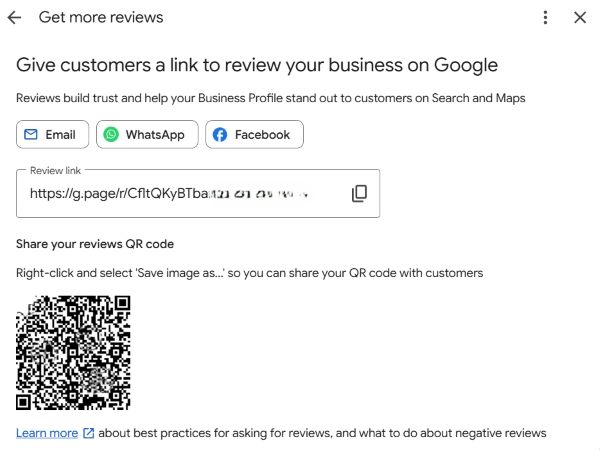
Instructions
- Open Google Search while signed in to the Google account that manages your business.
- Enter the query
my business. - In the row of round buttons in the management panel, find and click Ask for reviews.
- The system will generate a short URL in the format
https://g.page/r/[unique_code]/review. - Copy this link. Use it in your QR codes, NFC tags, and message templates.
- The system will also generate a ready-to-use QR code.
4 Steps to Collect Reviews Consistently
1. Catch the "Moment of Peak Delight"
Ask for a review right when the customer has experienced the value of your service:
- At an auto repair shop — when handing over a clean, fully repaired car with the replacement parts installed.
- At a clinic — the day after a complex procedure, during a follow-up call to check on the patient's well-being: "How are you feeling? Is everything comfortable?".
- At a restaurant — when the guest has finished dessert and sincerely thanks the waiter.
2. Introduce a Natural, Non-Intrusive Script
Employees are often uncomfortable asking for reviews because they do it awkwardly ("Please leave us a review, or we'll get in trouble"). Shift the focus to showing personal appreciation for the service provider:
"[Name], we're so glad you liked the haircut! If you have just a minute, please tap your phone against this Google Maps sign
and write a few words about your stylist, [Name]. It would mean a lot to them and help support our rating. Thank you!"
3. Automate Messages Through Messaging Apps
If your business model doesn't involve customers spending much time at the checkout counter (delivery services, car washes, website orders), set up an automated WhatsApp message to be sent 2–3 hours after an order is completed:
"Hello, [Name]! Thank you for choosing our service. We want to make sure everything went well. We'd really appreciate it
if you could rate our service on Google Maps: [Your short link]. Your feedback will help us improve!"
How to Avoid Google's Spam Filters When Collecting Reviews
Google uses strict machine-learning algorithms to combat fake ratings. Careless practices may result in genuine customer reviews being removed from search results:
- Don't have everyone use the same Wi-Fi network. Never ask customers to connect to your guest Wi-Fi and leave a review right at the table. Google may detect that reviews are being submitted from the same location IP address and flag them as spam. Customers should use their mobile 4G/5G connection instead.
- Avoid sudden spikes in review volume. If you haven't received a single review in six months and suddenly get 25 in one evening, your listing may be temporarily restricted by Google's algorithms. Collect reviews steadily — around 2–5 per week.
- Don't openly offer material incentives. Avoid putting up banners that say, "Get a free coffee for a 5-star review." Google considers this rating manipulation. Use neutral wording such as "Share your experience with us on Google Maps."
Pro tip - Encourage customers to attach photos. A review with a genuine photo of the interior, a dish, a receipt, or completed repair work is more likely to pass Google's safety filters and may remain near the top of the most helpful reviews for years.
Frequently Asked Questions
Can I offer customers a discount or a gift in exchange for a Google Maps review?
No. Google's policies prohibit incentivized reviews. If Google moderators or competitors report evidence of a material reward being offered for a review, your profile may lose reviews from recent months or face other restrictions.
Why did a customer write a review that never appeared on Google Maps?
The most common reason is that the customer connected to the business's Wi-Fi and submitted the review from the same IP address used to manage the business listing. The filter may also block reviews from newly created, empty profiles, reviews containing direct links, or reviews submitted in a sudden surge within a single day.
Tips
- Make leaving a review as easy as possible — use the official short link from your business profile dashboard and turn it into a QR code or display it on an NFC sign.
- Ask for feedback when customers are most satisfied, and frame the request as a way to personally support a specific employee.
- Keep the process technically sound — encourage customers to use mobile internet and avoid aggressive campaigns that generate a sudden surge of reviews in a single day.
Want to set up an automated flow of reviews from real customers?
Tell us about your industry in the comments, and we'll share ready-to-use messaging templates and table tent designs.