
How to Promote a Specific Service on Google Maps
To rank a specific business service at the top of search results (for example, "dental implants," "automatic transmission repair," or "personal bankruptcy"), simply having a general presence on Google Maps is not enough. Google's algorithms require targeted relevance, which involves adding a secondary category, optimizing the "Services" and "Products" sections, publishing regular posts with call-to-action buttons, encouraging relevant service mentions in reviews, and creating a dedicated landing page on your website.
A common problem for local businesses is that an auto repair shop appears for a general search like "auto repair shop near me" but is completely absent from results when a customer searches for a high-margin service such as "turbocharger repair" or "3D wheel alignment." The same issue affects clinics, beauty salons, and service centers.
Google Maps ranks business profiles based not only on the business name but also on how closely the profile content matches the customer's search intent. Below is a step-by-step guide to focusing your profile on promoting a target service and attracting qualified leads.
Google Business Profile Tools for Promoting a Single Service
| Tool | Where It Appears | SEO Impact | Conversion Impact |
|---|---|---|---|
| Secondary category | Within the ranking algorithm | Critical | Medium |
| "Products" section | Product showcase on the main profile screen | Medium | Maximum |
| "Services" section | Services tab and dropdown lists | High | High |
| Posts (Google Updates) | Updates feed at the bottom of the profile | Moderate | High |
| Reviews mentioning the service | Reviews section and review highlight tags | Critical | Maximum |
5 Steps to Promoting a Specific Service
Step 1. Choose a Relevant Secondary Category
If Google has a separate category for the service you want to promote, be sure to add it as a secondary category. For example, a dental practice promoting orthodontic treatment should add "Orthodontist" as a secondary category.
- Do not change your primary business category if it accurately reflects the core activity of your business.
- Use no more than 3–4 relevant secondary categories to avoid diluting your profile's relevance.
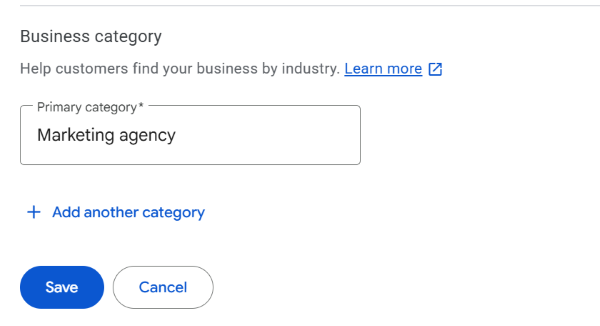
Step 2. Showcase the Service in the "Products" Section
A local marketing tip: showcase intangible services through the Products section. Unlike a standard text-based price list, the Products section appears on mobile devices as a large image carousel directly below the main business information.
- Upload a high-contrast image showing the process or result of the work (at least 1200x900 px).
- Specify a fixed price or a price range ("from ...").
- Write a concise description highlighting the benefits for the customer (up to 1,000 characters).
- Add a call-to-action button, such as Order Online or Learn More, linking to the relevant landing page.
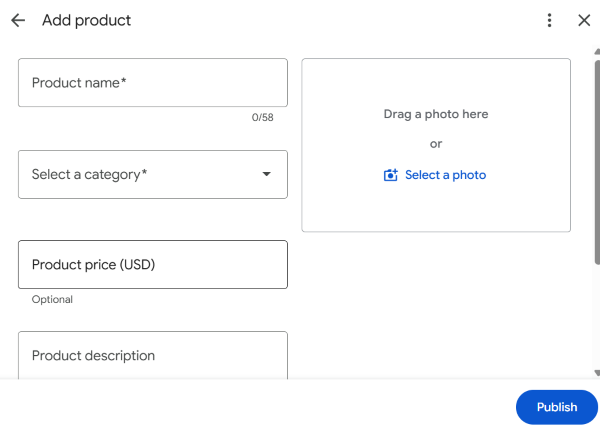
Step 3. Add More Detail to the "Services" Section
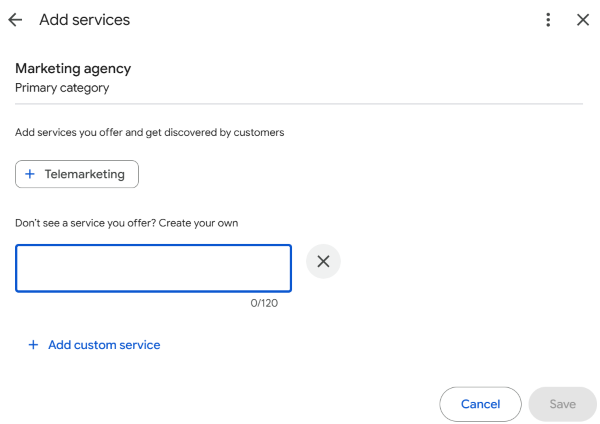
Build a detailed structure in the Services section. Do not limit yourself to the standard template—add custom entries (Custom Services). For each entry, write a clear description of 250–300 characters explaining the scope of work, materials used, or equipment involved.
Step 4. Encourage Reviews That Mention Relevant Keywords
When Google's search crawler sees customers regularly mentioning phrases such as "bikini-area laser hair removal" or "braces installation" in their reviews, your profile gains social proof that reinforces its relevance and can improve its visibility in local search results for those queries.
- Ask customers who have received this specific service to mention the particular specialist, equipment brand, or procedure in their review.
- Always include the service name when responding to reviews—for example: "Thank you for your review! We're glad that the paint polishing and ceramic coating on your car met your expectations.".
Step 5. Publish a Series of Posts
Publish regular updates using the Add Offer or What's New post types. A post can remain in focus for up to six months and signals to search engines that this service is actively offered.
- Showcase case studies in a "Before / After" format.
- Include a direct link to book an appointment or make a reservation.
Checklist: Is Your Profile Ready to Attract Traffic for This Service?
Frequently Asked Questions
Can I add a target service keyword to my business name on Google Maps?
Only if the word is officially part of your business's legal name or appears on your physical storefront signage. Adding service keywords to your profile name artificially is considered spam and can lead to suspension.
What is the difference between the Services and Products sections for intangible services?
The "Services" section is text-based and primarily helps search algorithms understand your offerings. The "Products" section is visual: it displays large cards with photos, prices, and call-to-action buttons directly on the first screen of mobile search results.
Tips
- Positioning a specific service helps attract customers with stronger purchase intent than broad searches within your industry.
- Use a combination of a secondary category, a "Products" section with pricing and a button, and a detailed "Services" section.
- Reinforce your results with genuine reviews that mention the specific work performed.
Want to highlight your business's core service on Google Maps?
Leave a comment describing your industry and the service you want to promote—we'll explore which categories and visual triggers are likely to work best.