
How to Transfer Ownership of a Google Maps Business Profile to a New Owner or Employee
To transfer management of a Google Maps business location, never share the password to your personal Google account. Access permissions are managed directly from the business profile dashboard via Business Profile settings → People and access. You can grant Manager access for day-to-day operations or transfer the Primary Owner role when selling the business or changing management.
Access to a Google Business Profile needs to be transferred in three common situations: you have hired a marketer or agency, you are handing over management to a branch manager, or you have sold the entire business to a new owner.
A common and dangerous mistake is sharing the Gmail password associated with the profile or trying to delete the profile so that the buyer can create a new one. This can lead to suspensions or the loss of ratings and reviews accumulated over the years.
Access Permissions Matrix: Which Role Should You Assign?
Before sending an invitation, choose the appropriate access level:
| Role | Who It's Suitable For | Available Actions | Restrictions |
|---|---|---|---|
| Manager | Marketers, administrators, social media specialists | Publishing posts, photos, and products; responding to reviews; changing business hours | Cannot add other users or remove the profile |
| Owner | Co-founders, senior managers, trusted partners | All Manager functions, plus adding and removing managers | Cannot remove the profile or revoke the Primary Owner's access |
| Primary Owner | The business's sole designated primary owner | Full control, transfer of primary ownership, removal of the business profile | A profile can have only one Primary Owner |
Step-by-Step Guide: How to Add a User or Transfer Ownership
Step 1. Open the Business Profile Dashboard
- Sign in to Google using the current owner's account.
- Open Google Search and enter
my businessor the exact name of your company. - In the upper-right corner of the management panel, click the three dots (the settings menu).
- Select Business Profile settings.
Step 2. Invite the New User
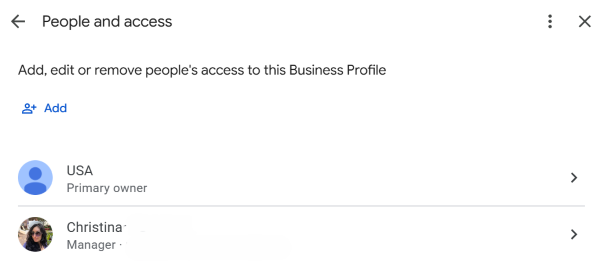
- In the window that opens, select People and access.
- Click Add (the plus icon).
- Enter the user's email address (a Google Account or a corporate email address hosted on Google Workspace).
- Select a role: Owner or Manager.
- Click Invite.
Google will send an official notification to the specified email address. The user simply needs to open the email and click Accept invitation.
Step 3. How to Make Someone the Primary Owner When Selling a Business
You cannot assign an external email address as the Primary Owner immediately. The process involves two stages:
- First, add the person as an Owner using the steps above, then wait for them to accept the invitation.
- Return to the People and access section.
- Click the user's name and change their role to Primary Owner in the dropdown menu.
- Confirm the ownership transfer in the pop-up window.
Important (7-day rule) - To protect against fraud and unauthorized takeovers, Google applies a security waiting period. The new Primary Owner can manage the profile immediately, but can remove the profile or remove the previous owner from the user list only after 7 days from accepting the role.
How to Revoke Access for a Former Employee or Agency
When a contractor finishes their work or a marketer leaves the company, their access should be revoked immediately:
- Open the menu: Three dots → Business Profile settings → People and access.
- Find the person whose access you want to remove.
- Click their name and select Remove person.
- Confirm the action. Access will be revoked immediately.
Checklist: Safely Transferring a Business Profile
Frequently Asked Questions
What is the 7-day rule when transferring ownership in Google Business Profile?
After a new Owner or Primary Owner is appointed, Google restricts their ability to remove the profile or revoke other users' access for exactly 7 days as a security measure.
Do I need to give the new owner my email login and password?
Absolutely not. Management access is transferred by sending an official invitation to the new owner's email address, without sharing passwords to personal accounts.
Tips
- Never share your personal account password. Use Google's built-in access management tools instead.
- Always assign contractors and employees the Manager role.
- When transferring ownership of the entire business, assign the Primary Owner role and allow for Google's 7-day security waiting period.
Having trouble transferring access to your Google Maps business profile?
Leave your question in the comments, and we'll explain how to assign roles correctly and protect your profile from accidental removal.