
How to Verify a Business on Google Maps
Without completing verification, changes to your business profile will not be published on Google Maps, and your listing will not rank in search results. Google determines which verification method is available - instant verification through Search Console, SMS or phone call, business email, or an uninterrupted video recording of your location.
You have added your business to Google Business Profile or found an existing unverified listing on Google Maps. Until ownership is verified, the profile displays the status "Verification required." You will not be able to respond to customer reviews, publish price lists, or track traffic analytics.
Unlike some other services, Google does not allow users to freely choose their verification method. Its security algorithm evaluates the trustworthiness of the profile and offers one or two available verification options.
Comparison of Google Business Profile Verification Methods
| Verification Method | Activation Speed | Typically Available to | Main Requirements |
|---|---|---|---|
| Instant Verification (Search Console) | Instant | Owners of websites with a verified domain, with the website listed in the profile | The same Google account must be used for Google Maps and Search Console |
| Phone (SMS or Call) | 1–2 minutes | Low-risk business categories and established businesses | A direct phone number without a complex interactive voice response system (IVR) |
| Business Email | 5–10 minutes | Businesses with a website on their own domain | An email address such as |
| Video Recording of the Premises | 1–5 business days | Most new businesses and service-based businesses | A single continuous recording without cuts, made using a smartphone camera |
Important - Traditional verification by postcard with a five-digit code is being phased out by Google. Video verification has become the primary and most common method for physical business locations.
Step-by-Step Verification Process
Step 1. Start the Verification Process
- Open Google Search or the Google Maps app while signed in to your business account.
- Enter your business name or the phrase
my business. - In the business profile management panel, click Get verified (or Verify your profile).

Alternative method
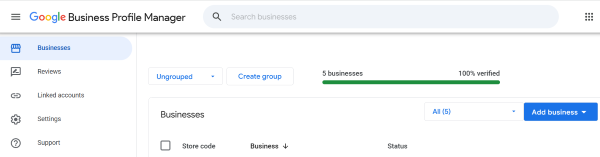
- Open the Google Business website
- Click Add business
Step 2. Meet the Requirements of the Offered Verification Method
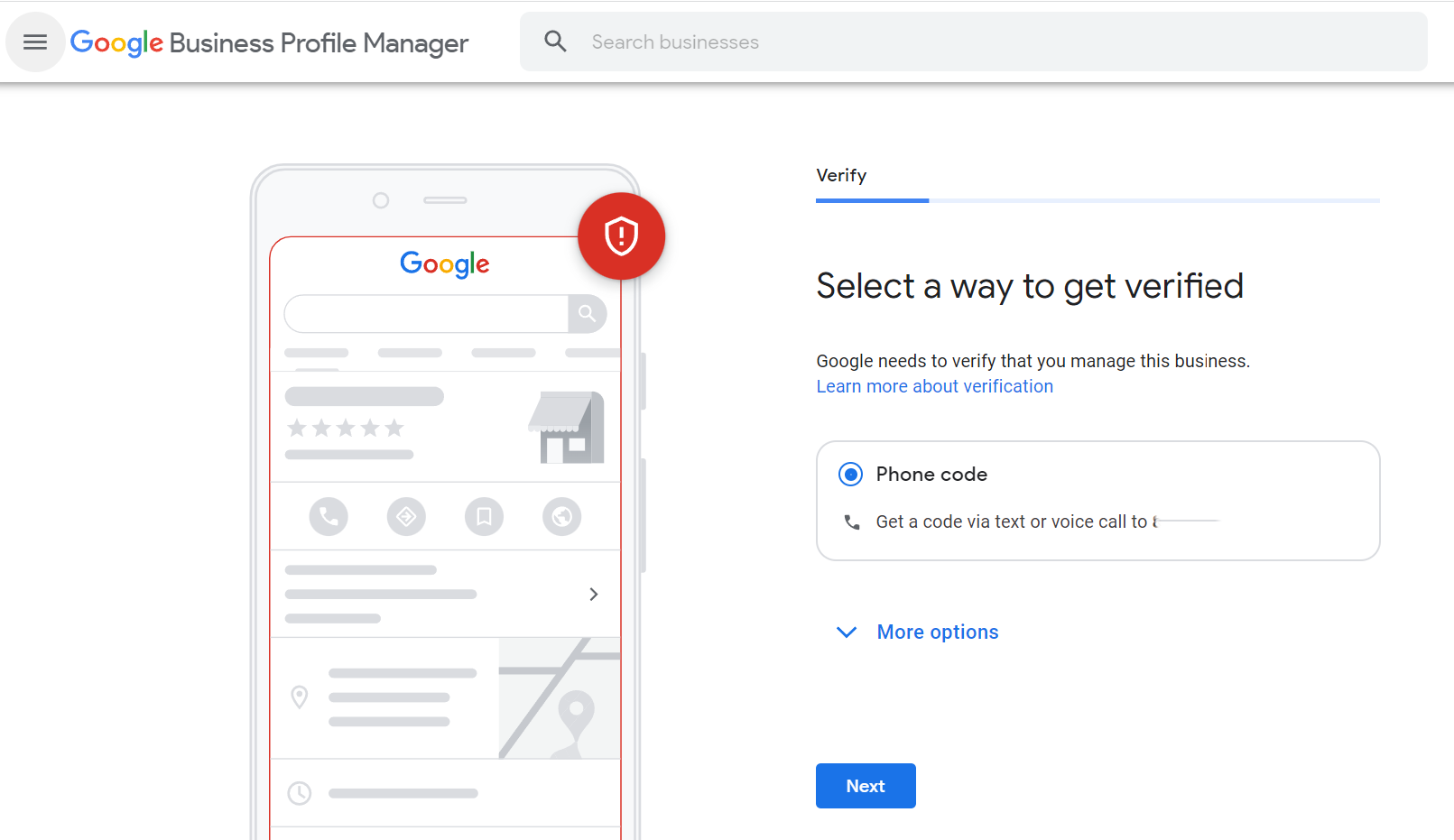
Option A - Verification by SMS or Phone Call
- Make sure your phone is switched on and can receive calls or text messages.
- Select how you want to receive the code - Text message (SMS) or Automated phone call.
- Enter the six-digit verification code in the appropriate field.
Option B - Verification by Video Recording
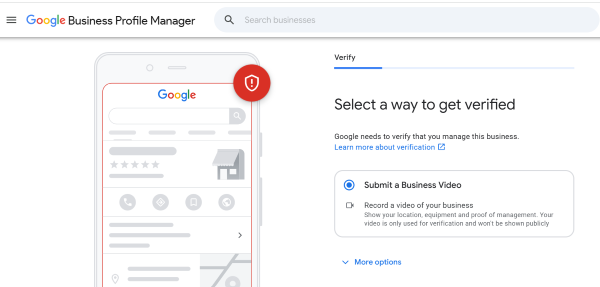
The system will generate a QR code that takes you to the video recording process on your mobile device. The recording must be continuous and follow these guidelines:
- Exterior location - a street sign and building number, your business signage, nearby buildings, or the entrance to a shopping center.
- Access to the premises - unlocking the entrance door or lock with a key and entering the work area.
- Proof of business activity - a cash register, payment terminal, employee workstations, branded stationery, or business cards.
Common Verification Mistakes Explained
- Editing the video or pausing during recording. The video must be recorded in real time through Google's verification interface. You cannot upload a previously recorded video file from your gallery.
- Confidential information appearing in the video. Make sure the recording does not capture the faces of random passersby, customers' personal information, or computer screens displaying passwords. Moderators may reject such a recording.
- Using virtual phone numbers (VoIP). Google can identify virtual phone systems and number rental services. Only a direct mobile number or a registered landline number is suitable for verification.
- Editing business information immediately after submitting the request. If you change the business name, address, or category while your video is being reviewed, the process may reset, and you may have to start verification again.
Frequently Asked Questions
Can I choose SMS verification instead of video verification?
No. The verification method is assigned by Google's automated algorithm based on the business category, account trustworthiness, and the level of spam risk in the specific location.
How long does video verification review take?
The standard video review period is up to 5 business days. If the status does not update, the management panel may offer you the option to verify again or contact support.
Tips
- Profile verification is required to publish changes and achieve full visibility in Google Maps search results.
- If your business website is already connected to Google Search Console under the same account, use instant verification if it is available.
- If video verification is required, prepare your recording route in advance - show the address sign outside, unlock the door with a key, and film the work areas inside.
Having trouble verifying your business listing?
If your video is rejected or the verification call does not come through, describe the problem in the comments - we will suggest how to resolve it through Google Support.