
All Ways to Upload Products and Services to Google Business Profile
Google Maps users want to see prices and product selections before calling a business. Google Business Profile offers three ways to showcase your offerings: manually adding visual product cards in the Edit products section (up to 50–100 key items), organizing services as text entries in the Edit services section, and automatically synchronizing hundreds of a store's inventory items through Google Merchant Center using the Free Local Product Listings program.
A business profile without a price list or product showcase can lose more than half of its high-intent customers. If someone is looking for brake pad replacement or a bouquet of peonies, they are more likely to choose a business whose mobile search listing displays the price and a photo of the result than one that simply links to an unoptimized website.
Google provides businesses with different tools for different needs, ranging from a simple manually maintained product showcase to an automated catalog feed containing thousands of items.
Comparing Product Catalog Upload Methods
| Upload Method | Best For | Number of Items | Difficulty | Price Automation |
|---|---|---|---|---|
| 1. Products section (manual) | Service businesses, cafes, auto repair shops, beauty salons | 10–100 | Low | No (manual updates) |
| 2. Services section (text-based) | Any service-based business (for local SEO) | 20–150 | Low | No |
| 3. Google Merchant Center (feed) | Brick-and-mortar retailers, electronics stores, pharmacies, building supply stores | 100–10,000+ | High | Full automatic synchronization |
| 4. Reserve with Google integrations | Beauty studios, clinics, restaurants (online booking) | Service price list | Medium | Through a partner CRM |
Visual Product Showcase: Products Editor
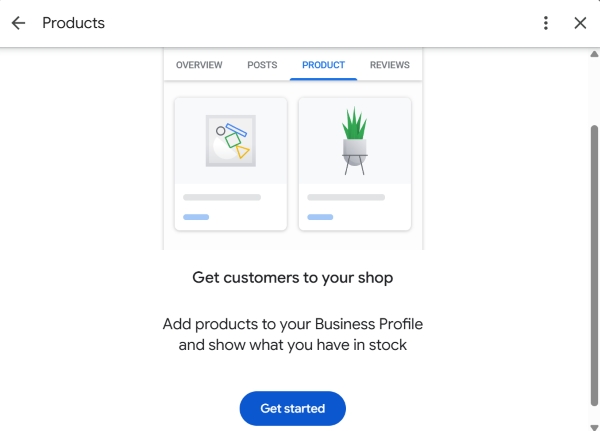
This is one of the most prominent elements for users on smartphones. Product cards appear in a carousel directly below the contact buttons.
Step-by-Step Guide to Adding Products Manually
- Enter the search query
my businessin Google Search. - In the management panel, click Edit products → Add product.
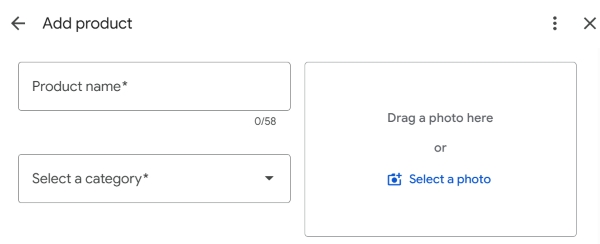
- Fill in the fields:
- Product photo - A high-contrast image against a light background, without text or watermarks (resolution of at least 800 × 600 px).
- Name - A precise, concise product or service name containing a relevant keyword (for example, "Philadelphia XL Sushi Set" or "Engine Oil Change").
- Product category - Select an existing category or create a new logical group (for example, "Maintenance and Diagnostics" or "Body Repair").
- Price or price range - Enter the exact price or a starting price (for example, "from $25").
- Description (up to 1,000 characters) - Describe the contents, specifications, benefits, and warranty.
- Action button - Choose "Order online," "Buy," or "Learn more," and insert a UTM-tagged link to the relevant page on your website.
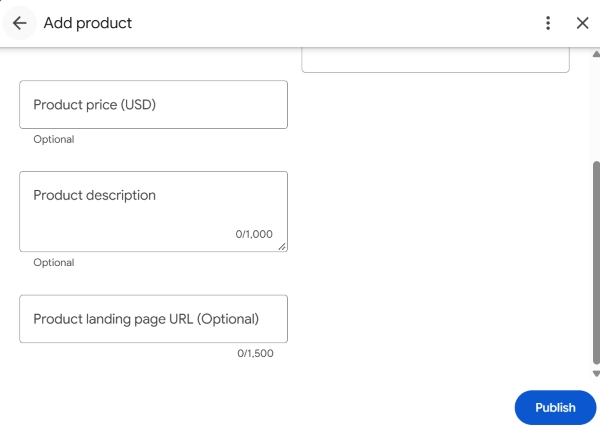
Click Save. The product will appear on your profile after a quick automated review, usually within 15 minutes to 2 hours.
Structured Catalog in the Services Section
The Edit services section is intended exclusively for services rather than physical products. It is closely integrated with Google Maps' search system.
How to Optimize Services for Maximum SEO Impact

Click Edit services in the management panel.
The catalog is linked to your primary and additional business categories. For each category, Google provides a predefined list of popular services. Select the ones you actually offer.
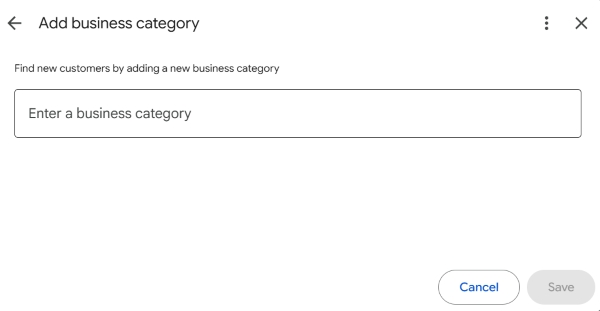
Click Add custom service if the service you need is not listed.
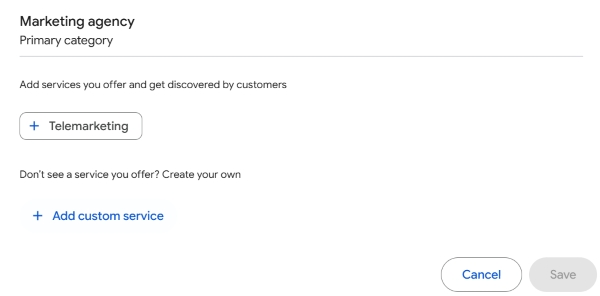
Click the service you added and make sure to enter its price and a detailed description (up to 300 characters). Mention the equipment, products, or professional standards you use to improve the relevance of your profile in search results.
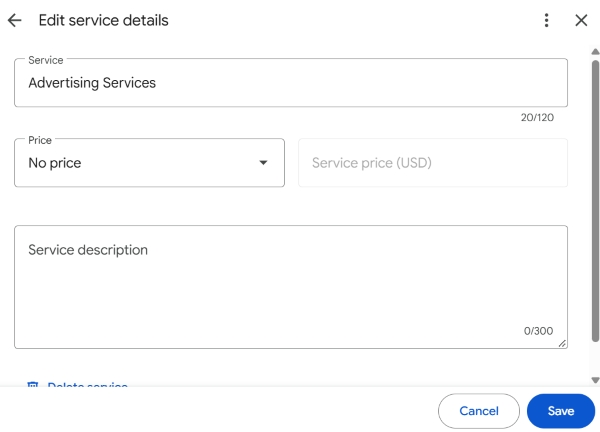
Important - Do not leave the price field blank or simply state "price upon request." According to Google statistics, users click on business profiles with a listed starting price 38% more often because it reduces concerns about unexpected costs.
Automatic Product Feeds Through Google Merchant Center
If you run an electronics store, pharmacy, pet shop, or building supply store with hundreds of products and constantly changing inventory, updating every item manually is impractical. The solution is the Free Local Product Listings program.
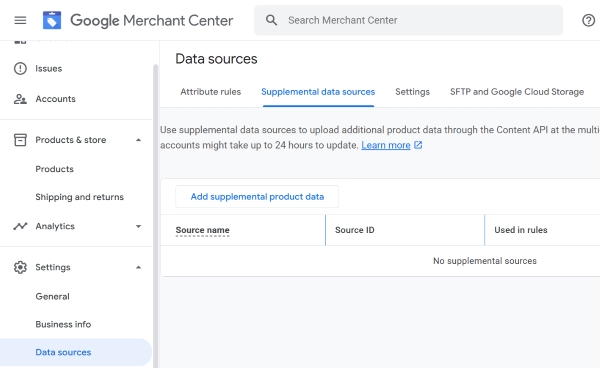
How It Works
- Create an account in Google Merchant Center.
- Link your Merchant Center account to your Google Business Profile in the settings.
- Have a developer configure an XML/CSV local inventory feed containing the product ID, price, SKU, and stock quantity for each store location.
- A special "In stock at this store" tab may appear on your Google Maps listing, allowing nearby users to search for specific product SKUs directly in Maps.
Synchronization Through CRM Systems (Reserve with Google)
For beauty salons, barbershops, clinics, and fitness studios, Google supports integration with popular online appointment and booking platforms through Reserve with Google. Service lists, staff details, and available appointment slots are automatically transferred from a partner CRM to the business profile, allowing customers to book a specific service in one click without visiting a third-party website.
Checklist: Auditing Your Business Profile's Product Listings
Frequently Asked Questions
Can I upload a price list to Google Maps as a single Excel or CSV file for one business location?
The Google Search interface does not allow you to upload an Excel spreadsheet directly to the Products section for a single location. Bulk spreadsheet uploads are available for chains with 10 or more locations through the Business Profile Manager, or for retail stores through a product feed in Google Merchant Center.
What is the main difference between the Products section and the Services section?
The Products section is visual: cards featuring photos, prices, and links appear prominently in the mobile listing. The Services section is text-based: it is linked to your business categories and primarily helps Google's search algorithm match your profile to relevant user queries.
Recommendations
- Showcase your top 10 high-margin products or services in the visual Products section. This is the storefront users see near the top of your profile on smartphones.
- Complete the text-based Services section with prices and descriptions to expand your profile's organic reach for more specific, lower-volume search queries.
- For retail stores with large inventories, integrate with Google Merchant Center to automatically display local stock availability.
Need help setting up your product showcase or uploading your catalog?
Tell us about your business and how many items are on your price list in the comments. We'll recommend the fastest and most convenient way to upload them to Google Maps.