
Google Business Profile Dashboard
The familiar standalone Google My Business website is no longer used for individual business locations. The dashboard is now called Google Business Profile and can be accessed directly from Google Search or the Google Maps app, provided you are signed in with an account that manages the profile. The dashboard lets you edit business information, view call statistics, respond to reviews, showcase products, and publish updates.
Entrepreneurs who haven't accessed their Google Maps business profile settings for a while often find themselves confused: the old app has been discontinued, and visiting the service's website redirects them to a regular Google Search page.
This isn't a bug but a new management interface called New Merchant Experience (NMX). Google has moved all the dashboard functionality directly into the search results page. Let's look at how to access the management panel, where to find the key sections, and how to get the most out of it.
3 Ways to Access Your Business Profile Dashboard
The main requirement is to make sure that, before signing in, you are logged into the browser or on your smartphone with the exact Gmail or Google Workspace account associated with the owner's or manager's permissions.
Method 1. Through Google Search (the fastest way)
- Open google.com.
- Enter
my business(or your exact brand name and city) in the search bar. - Your business profile management panel will appear directly above the search results.
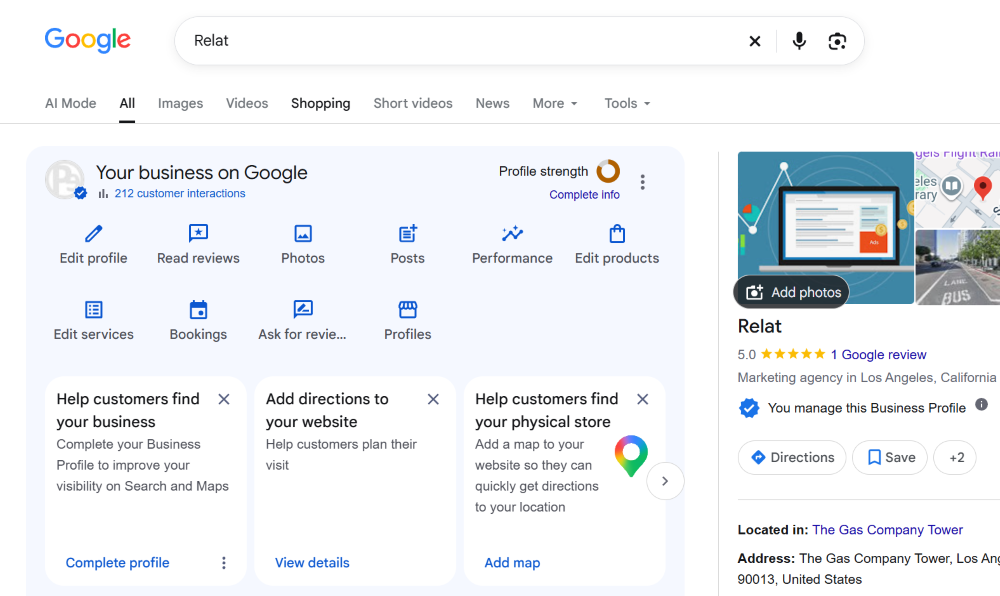
Method 2. Through the Google Maps Mobile App
- Open the Google Maps app on iOS or Android.
- In the bottom-right corner, tap the Business icon, which automatically appears for profile owners.
- Select the desired location from the list to quickly respond to reviews or upload photos from your phone.
Method 3. Through Business Profile Manager (for chains and agencies)
If you manage anywhere from 2 to 100+ locations, go directly to business.google.com/locations. A consolidated table of all your locations will open, allowing you to create location groups, check verification statuses, and export combined reports.
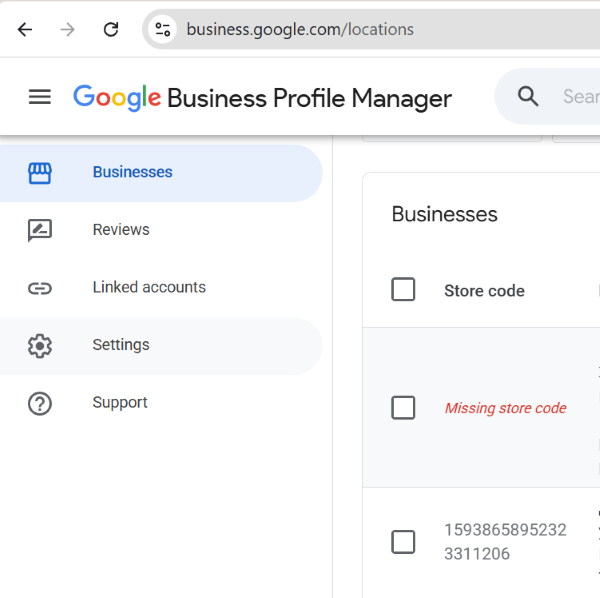
Navigating the Dashboard - What Each Button Does
The management panel in Google Search consists of quick-access icons. Below is an explanation of the main tools and how they can help promote your business.
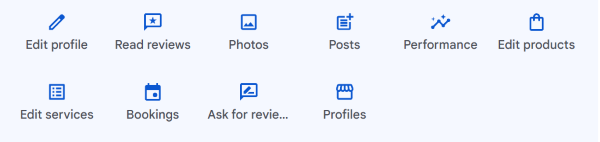
| Dashboard Button | What's Inside | How to Use It to Generate More Leads |
|---|---|---|
| Edit profile | Business name, categories, description, phone number, website, opening hours, and attributes | Complete every field. Make sure to specify special opening hours for holidays so customers don't see incorrect information about whether you're open. |
| Read reviews | A feed of all reviews, with a filter for unanswered reviews | Respond to every review within 24 hours, naturally incorporating the names of your services into your replies. |
| Performance | Statistics on views, search queries, clicks on your phone number and website, and requests for directions | Check the search queries report and incorporate relevant phrases you discover into your services and descriptions. |
| Edit products | A product showcase with photos, prices, descriptions, and links | Feature your 5–10 main products or flagship services here to attract attention from mobile users. |
| Edit services | A structured list of services linked to your business categories | Add custom services (Custom Services) with detailed text descriptions. |
| Add update | Publishing news, offers, and events (Google Updates) | Publish at least one post per week featuring a special offer and a booking button. |
| Get more reviews | A short link and a ready-made QR code to share with customers | Place the QR code at the checkout counter, reception desk, or on receipts to encourage a steady stream of reviews. |
Hidden Settings - The Three-Dot Menu
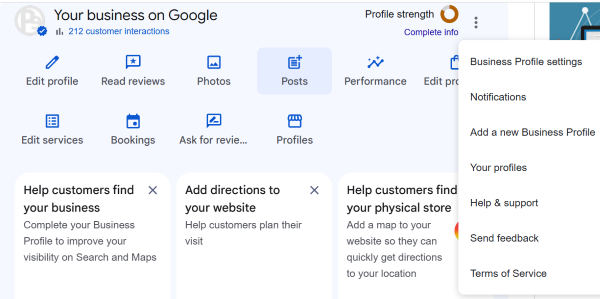
The management panel has an icon with three vertical dots in the upper-right corner. Many business owners never open this menu, even though it contains critically important system settings -
- People and access - add marketers, assign managers, and transfer primary ownership.
- Advanced settings - this is where you'll find your profile's unique digital identifier (Business Profile ID). It is essential when contacting Google Support if your profile has been suspended.
- Linked accounts - directly connect your Maps business profile to your Google Ads account to launch local advertising campaigns.
Important - Google often suggests automatic edits to business information (highlighted in orange in the dashboard) based on feedback from random Maps users. Regularly visit the "Edit profile" section and reject any incorrect changes to your opening hours or phone numbers.
Checklist - Your Weekly Dashboard Routine
To help your business profile maintain a stable position in the local top 3, complete this short routine once a week:
Frequently Asked Questions
Where did the old dashboard and Google My Business mobile app go?
Google discontinued the standalone Google My Business app and moved business profile management directly into the Google Search interface and the Google Maps mobile app (under the "Business" tab).
How can I manage dozens of locations from a single interface?
Businesses with multiple locations and agencies can still use the table-based interface in Business Profile Manager at business.google.com/locations. You can group locations and upload updates in bulk.
Tips
- You can now manage your business location directly from Google Search by entering
my business. - Don't limit yourself to basic fields such as your address and phone number. Make use of commercial features, including the "Products" showcase, the "Services" catalog, and "Updates" posts.
- Write down and save your profile ID from the advanced settings. It can save you weeks of back-and-forth communication when technical issues arise.
Can't find the feature you need in the new Google interface?
Leave a comment explaining what you're trying to do, and we'll show you where to find the relevant setting and how to enable it.