
How to Change Your Business Address on Google Maps
When moving your business to a new location, never create a new Google Maps listing from scratch. This can create a problematic duplicate and cause you to lose the benefit of your accumulated reviews. Instead, change the address directly in your existing profile by selecting Edit profile → Location and precisely adjusting the map pin. Be prepared to verify the move, as Google may require you to verify the new location again.
Moving a beauty salon, auto repair shop, or medical center to a larger space is an exciting milestone for any business, but technical issues with map listings can sometimes spoil the occasion. Incorrect actions may result in your listing being suspended or regular customers continuing to travel to your old address.
Google Maps may scrutinize changes to a business's location closely because the address is an important factor in local search rankings.
How to Change Your Address in Your Business Profile
Step 1. Update Your Contact Information on Your Website and Social Media
Before approving changes, Google's systems may compare your business address with the information on your official website. Before editing your Google Business Profile, update the address in your website header and footer, on the Contact page, and on your social media profiles.
Step 2. Open the Location Editing Settings
- Sign in to Google using the account that manages your business profile.
- Enter
my businessin Google Search. - In the row of quick-action buttons, click Edit profile.
- Open the Location tab and click the Business location field.
Step 3. Enter the New Address and Adjust the Map Pin
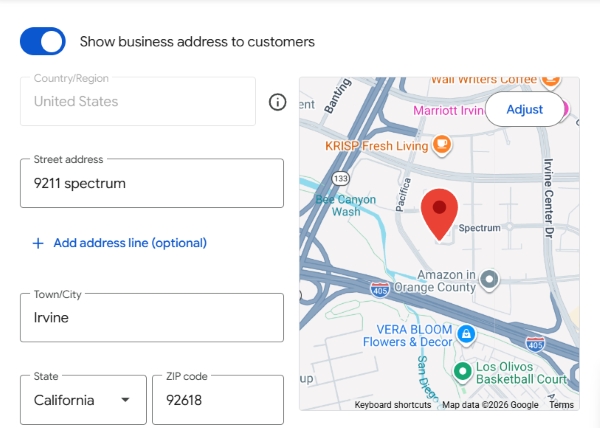
- Enter the complete address, including the city, street, building number, building or unit details, and postal code.
- If you rent an office in a business center or a unit in a shopping mall, include the floor or office number in the additional address field.
- Click Adjust below the interactive map and manually drag the red map pin to the exact location of the customer entrance to your premises.
- Click Save.
What Happens After You Save the Changes?
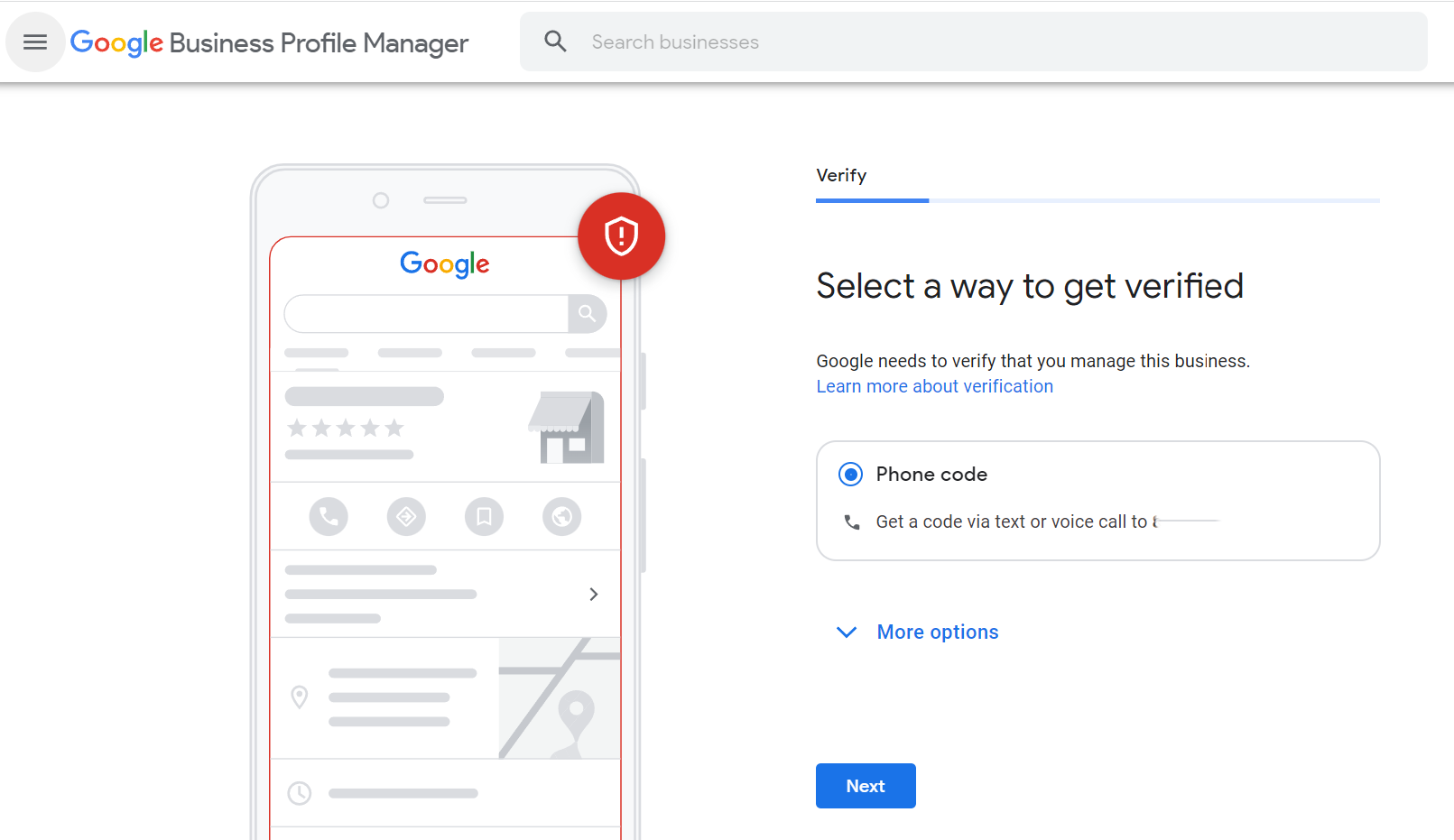
Changing your address may trigger additional scrutiny from Google's anti-spam systems. Your profile may be moved to the Verification required status.
- If Google offers SMS or phone verification - receive the verification code on your business phone number and complete the verification process.
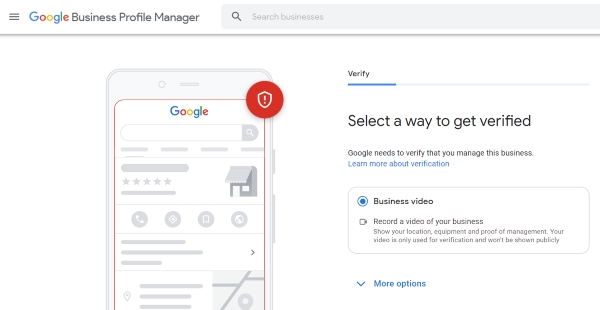
- If Google requests video verification - don't panic. Wait until a permanent business sign or official nameplate is installed at the new location. Then use your smartphone to record one continuous video showing the building's exterior address sign → the business sign on the facade → unlocking the entrance with a key → the working area and business documents at the checkout counter.
Important - Do not change your business name, phone number, and categories at the same time as your address! Multiple changes to core business information at once may trigger additional scrutiny and could lead to profile suspension. Change the address and complete any requested verification first. Update the remaining fields separately after the address change has been processed.
What to Do About Your Old Address: Inform Your Customers
To make sure existing customers aren't confused while your business information is being updated:
- Immediately after changing your address, publish an update using the Add update button (Google Updates). Write something like: "We've moved! We look forward to welcoming you to our new space at [New Address]. You'll find directions and parking information in our profile."
- Upload 3–5 recent photos of the new building facade, entrance, and interior.
- Remove outdated photos of your former premises from the profile gallery to avoid confusing customers navigating to your business.
Checklist: Moving Your Business Safely on Google Maps
Frequently Asked Questions
Will my reviews and average business rating remain after changing my address on Google Maps?
Generally, yes. If you update the address within your existing verified business profile, your reviews, photos, and customer ratings usually remain associated with that profile. If you create a new listing from scratch, your previous reviews will remain associated with the old listing.
Will Google require re-verification after I change my address?
Google may require re-verification after an address change. Depending on the circumstances, you may be asked to record a video of the new location, showing the business sign, entrance, and access to the premises, or to verify your business by SMS or phone call.
Tips
- Never create a second listing when moving. Update the address in your existing verified profile.
- Before submitting changes to Google, update your contact information on your own website to help prevent discrepancies that could cause the change to be rejected.
- Prepare your lease documents and install your business sign in advance. This can help you provide evidence of your new address if Google requests video verification.
Planning to move, or is your listing stuck under review after an address change?
Describe your situation in the comments. We'll suggest how to approach video verification and help you avoid losing customers on Google Maps.