
Unauthorized Changes to a Google Maps Business Profile
Where Third-Party Edits Come From and How to Protect Your Listing
If your Google Maps listing suddenly displays a different phone number, incorrect opening hours, or a "Permanently closed" label, it does not necessarily mean your account has been hacked. On Google Maps, any user can click "Suggest an edit." If several people or Google's AI systems consider the submitted information accurate, the changes may be applied automatically. Business owners should regularly check "orange updates" in their management dashboard and reject incorrect changes promptly.
A typical business owner's nightmare begins on a Friday evening when phone calls suddenly stop. You open Google Maps and discover a red "Permanently closed" label on your business or a competitor's mobile number displayed instead of your official phone number. Meanwhile, nobody unauthorized has accessed your account.
Google Maps operates on a crowdsourcing model similar to Wikipedia. The system continuously asks passersby and members of the Local Guides program whether a business is open, whether there is a wheelchair ramp, and whether the opening hours are correct. Let's look at how to identify third-party edits, reverse them in seconds, and protect your listing against malicious interference.
Where Do Unauthorized Changes Come From? 4 Sources
| Source of Changes | How It Works Technically | What Usually Gets Changed |
|---|---|---|
| 1. Competitor attacks | Multiple accounts click "Suggest an edit" → "Permanently closed" or change the business category | Business status, website replacement, primary category changes |
| 2. Customer and Local Guide errors | A customer visits outside business hours or on a holiday and reports that the location is closed | Opening hours and attributes (parking, card payments) |
| 3. Google's automated data systems | A bot finds your old address or phone number on a third-party directory and "corrects" the listing | Phone number, website, address postal code |
| 4. Third-party integrations and CRMs | Synchronized services overwrite your data because of a technical API error | Service list, price list, appointment hours |
What Are Google's "Orange Edits" and How Can You Revert Them?
When Google receives automated information from external sources, it does not immediately remove the existing information. In the profile management dashboard, affected fields are highlighted in orange or displayed with strikethrough formatting.
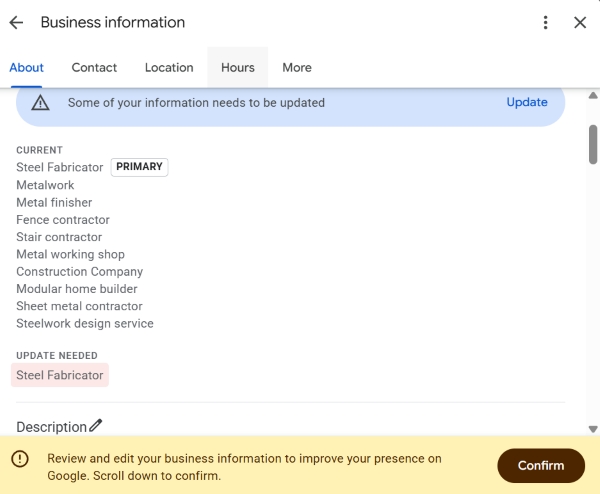
Step-by-Step Guide to Reverting Changes
- Enter the phrase
my businessin Google Search. - If Google has accepted external edits, a notification will appear near the top: "Google updates have been made to your profile."
- Click Review updates.
- Google will display two columns for comparison: your original information and the proposed changes.
- Click Reject or restore your correct information, then save the profile.
Important - If you ignore notifications about orange edits for several weeks, Google may interpret the lack of a response as acceptance. The changes may become the primary information displayed on your profile, making it more difficult to restore the previous status.
What to Do If Your Business Is Marked "Permanently Closed"
This is the most dangerous scenario because the listing can quickly lose visibility in search results and stop appearing for category-based queries such as "cafe near me" or "auto repair shop."
Recovery Plan
- Open your business profile management panel through Google Search.
- Click Edit profile → the Business hours tab.
- Find the business status and switch it from "Permanently closed" to Open.
- Review and save your opening hours for every day of the week.
- Publish a new post using the Add update button with text such as "We are open as usual every day from ... to ... We look forward to seeing you!" Attach a recent photo of your storefront or entrance. This may help Google recognize that the business is operating.
5 Rules for Protecting Your Profile from External Interference
- Keep your NAP information consistent across external platforms. Google's systems constantly scan other directories, listings, and social networks. If an old, forgotten website still displays your previous phone number, Google may repeatedly attempt to add it to your Maps profile. Make sure your contact information is consistent across all websites.
- Enable email notifications. Make sure Google Business Profile is configured to send system notifications to your primary business email address. Google sends email notifications about suggested changes.
- Regularly confirm special holiday hours. If you do not confirm your opening hours before major holidays, Google may display a warning such as "Hours might differ", prompting users to suggest edits.
- Do not grant unnecessary permissions to third-party services. Check the "Third-party apps with account access" section in your Google Account settings. Remove outdated auto-posting services and widgets you no longer use.
- Check your listing in incognito mode once a week. View your profile as an ordinary user would so you can quickly spot incorrect phone numbers or a misplaced entrance pin.
Frequently Asked Questions
Why did my business profile information change without my consent if I am the only owner?
Google Maps relies on crowdsourced information. Its algorithms may automatically apply edits when several Maps users or Local Guides confirm the same information, or when Google's automated systems find different contact details on external websites and directories.
What should I do if my Google Maps business profile is marked "Permanently closed"?
Open the management panel through Google Search, click "Edit profile," go to "Business hours," and change the status to "Open." If you cannot change the status, contact Google Support and provide a recent photo showing your business sign and open entrance.
- User-suggested edits are a standard feature of Google Maps, not necessarily a sign that your account has been hacked.
- Once a week, open your management panel by searching for
my businessand reject incorrect orange edits before Google permanently applies them. - Keep your contact information consistent across your website and social media profiles to prevent Google's algorithms from automatically importing outdated details.
Are competitors repeatedly targeting your Google Maps listing or changing your business hours?
Share your business location and describe the unauthorized changes you have encountered in the comments. We'll suggest ways to confirm your information through Google Support and address malicious edits.