
How to Add an Online Booking Button to Google Maps
Setting Up Reserve with Google and Direct Booking Links
The prominent blue "Book" button displayed directly below your business name on Google Maps can increase conversion rates from profile views to customers by an average of 30%. You can enable online booking in two ways: integrate a native booking widget through Reserve with Google (synchronizing staff schedules from your CRM without redirecting users to an external website) or add a direct link to your online booking system through the Bookings section in your business profile management panel.
When someone urgently needs a haircut, an ultrasound scan, or a dinner reservation, they want to get it done in just a few clicks. If your business listing only displays a phone number, customers face an extra barrier: calling is not always convenient, the line may be busy, and the administrator may not respond outside business hours.
An online booking button on Google Maps turns your business listing into a 24/7 sales channel. Customers can choose a specialist, view available time slots, and confirm an appointment even at two in the morning.
Method 1. Native Integration via Reserve with Google (Maximum Conversion)
Reserve with Google allows users to select a service, specialist, date, and time without leaving the Maps interface. The booking details are automatically sent to your CRM calendar.
[Screenshot placeholder: Selecting a specialist and appointment time through Reserve with Google]
Step-by-Step Setup Guide:
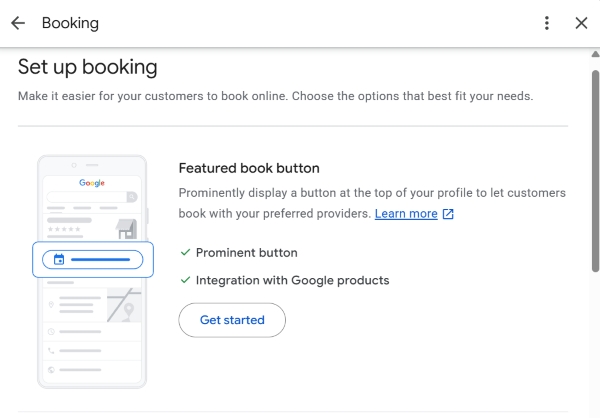
- Check whether your CRM is supported - Google works with a list of officially certified providers, including online booking services for businesses, salon CRM systems, and restaurant reservation platforms.
- Enable the integration in your system's dashboard -
- Open your CRM dashboard and navigate to Integrations / Online Booking.
- Find Google Maps (Reserve with Google).
- Enable the integration toggle and select the business locations you want to connect.
- Synchronize your data - The provider automatically sends your service list, prices, staff schedules, and available time slots to Google.
- The booking button appears - Within 24–48 hours after the integration is verified, a native "Book" button should appear on your business profile.
Important - For Reserve with Google to match your CRM location with the correct Google Maps listing, the business name, address, and primary phone number in your CRM must match the details in Google Business Profile character for character.
Method 2. Add a Direct Link to Your Booking System
If your CRM is not among the official Reserve with Google partners, or you use your own online booking form on your website, you can configure a booking link manually through the destination URL settings.
Setup Instructions:
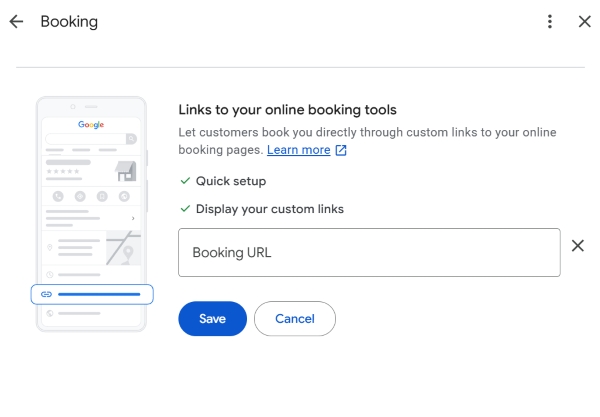
- Sign in to Google using your business account.
- Enter
my businessin Google Search. - In the row of quick-action buttons, click Bookings.
- Find the Appointment link field.
- Insert a direct link to your online booking page or widget. Be sure to add UTM parameters for web analytics -
https://your-website.com/booking/?utm_source=google_maps&utm_medium=organic&utm_campaign=booking_button - Click Save. The button should become available to customers after a quick review of the information, typically within 15 minutes to 2 hours.
3 Rules for Turning Online Bookings into Actual Visits
- Keep your CRM schedule up to date - If a customer books an appointment but the specialist is off that day, your business may receive a one-star review because of the missed appointment. Configure immediate blocking of booked time slots.
- Set up automatic SMS and WhatsApp reminders - The attendance rate for online bookings without confirmation is approximately 60–70%. Sending reminders 24 hours and 2 hours before the appointment can increase attendance to 90–95%.
- Make your basic pricing transparent - Customers rarely confirm bookings when they do not know the price. Display the exact price or starting price next to each service in your booking schedule.
Checklist: Adding a Booking Button to Google Maps
Frequently Asked Questions
How much does it cost to enable online booking through Reserve with Google?
Google does not charge a subscription fee for displaying a booking button in Google Business Profile. However, integration availability depends on your CRM system or online booking provider. Synchronization with Google may be included in the platform's basic or premium subscription plan.
Which types of businesses can use the native booking button on Google Maps?
Native Reserve with Google integration is available for eligible businesses that operate on appointment or reservation schedules. These may include beauty salons, barbershops, spas, restaurants and cafés (table reservations), fitness studios and group training providers, as well as medical centers and private practices.
- An online booking button on Google Maps removes friction from the first interaction and helps attract customers without requiring administrator involvement.
- Reserve with Google can maximize conversion by allowing customers to book directly within the Maps app in just a few taps.
- If direct CRM integration is unavailable, use a link to a mobile-friendly booking widget with UTM parameters in the "Bookings" section.
Want to set up online booking on Google Maps for your business location?
Leave the name of your CRM system and your industry in the comments. We'll help you determine whether your platform supports direct Reserve with Google integration and explain how to enable the booking button in just a few steps.