
How to Remove Access in Google Business Profile
Revoking Access for Employees and Agencies on Google Maps
Leaving former marketing employees or previous agencies on your business profile's user list is a direct threat to your business. A disgruntled former employee could change your phone number to their own, mark your business as "Permanently closed," or delete reviews with a single click. You can revoke access in 30 seconds: open your business profile menu in Google Search (three dots) → Business Profile settings → People and access → click the person's name and select Remove person.
Anyone with an Owner or Manager role can access and manage your business listing. If your contract with an agency ends or an administrator moves to another job, their account should be disconnected immediately.
Who Can Remove Whom? Permissions Matrix
The ability to revoke access depends on your current role in the profile -
| Your current role | Can remove a Manager | Can remove an Owner | Can remove the Primary Owner |
|---|---|---|---|
| Primary Owner | Yes | Yes | No (can only transfer the role to someone else) |
| Owner | Yes | Yes (except the Primary Owner) | No |
| Manager | No | No | No |
How to Revoke Access
1. Open Your Business Profile in Google Search
- Sign in using the Google account that owns the business profile.
- Enter
my businessor your exact brand name in Google Search. - In the upper-right corner of the business profile panel, click the three vertical dots (settings menu).
2. Go to the Access Management Section
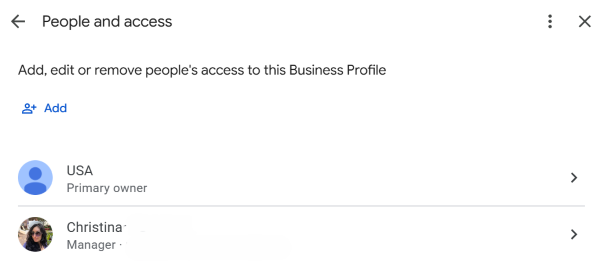
From the drop-down menu, select Business Profile settings → People and access.
3. Select the User You Want to Remove
A list of all accounts with permission to manage the business listing will appear. Find the email address of the employee or agency whose access you want to revoke.
Step 4. Remove Access
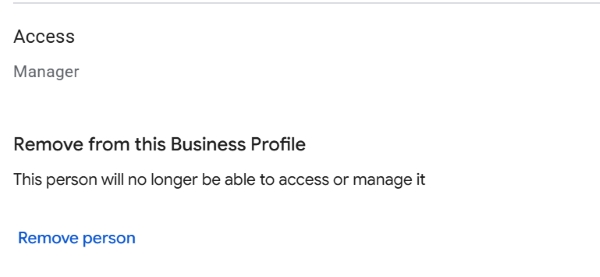
- Click the user's name or email address.
- At the bottom of the pop-up window, click the red Remove person button.
- Confirm the action in the security confirmation window.
Access is revoked immediately. The former employee will no longer be able to open the management panel or edit your business information on Google Maps.
Important - Do not confuse the "Remove person" button with the option to remove the entire business profile. If you delete the profile in the advanced settings, the entire listing may be removed from Google Maps, including its reviews.
How to Remove Yourself from Someone Else's Business Profile
If you are a marketer or former employee and want to disconnect someone else's business profile from your personal account to keep your dashboard organized:
- Open the People and access menu using the instructions above.
- Click your own account in the list.
- Click Stop managing this business. The listing will disappear from your personal dashboard but will continue operating normally for its owner.
What If the "People and Access" Option Is Missing?
If you open the settings but cannot find the "People and access" section, your account is probably assigned the Manager role. You can respond to reviews and upload photos, but you do not have administrative permissions to manage users.
Solution -
- Contact the person who created the business profile or the company's CEO and ask them to upgrade your role to Owner.
- If the profile creator is unknown or unavailable, follow the standard procedure for requesting ownership of the profile using the "Own this business?" option on Google Maps.
Frequently Asked Questions
Can a Manager remove an Owner from Google Business Profile?
No. Users with the Manager role do not have access to the user management section. Only an Owner or Primary Owner can remove other users.
What should I do if a former contractor controls my business profile and I am not the Primary Owner?
If the contractor refuses to transfer ownership voluntarily, you need to request ownership using the "Own this business?" option on Google Maps. If you receive no response within three days, Google may allow you to verify the business yourself via SMS, email, or video.
Tips
- Audit access to your Google Business Profile at least once every quarter.
- Remove former employees on their last working day to reduce the risk of malicious activity or accidental changes.
- Never grant external contractors the Primary Owner role. A regular Manager role is sufficient for marketing work.
Unable to regain control of your business profile from a former agency or employee?
Describe your situation in the comments. We'll explain how to establish ownership through Google Support and safely regain control of your listing.