
How to Choose Business Categories on Google Maps
Impact on Local Pack Rankings and Common Mistakes
Primary Category is the number one factor in Google Maps local rankings. It accounts for more than 60% of text relevance weighting and determines which core search queries can lead customers to your business, as well as which features (menus, bookings, products) become available in your profile. Additional categories help capture related traffic, but too many can dilute your listing's authority. Choose categories that accurately reflect the core nature of your business.
Imagine you've opened a car detailing and body repair shop. When setting up your Google Business Profile, you hastily selected a broad category such as "Auto Repair Shop." As a result, your listing appears for people searching for oil changes or muffler repairs but is missing from search results when a high-value customer searches for "car body polishing" or "car wrapping."
Choosing categories is a fundamental decision when setting up your business profile. If you get this wrong, neither a perfect rating nor hundreds of reviews will guarantee a place in the coveted top-three Local Pack.
Primary vs. Additional Categories: What's the Difference?
| Parameter | Primary Category | Additional Categories (Secondary) |
|---|---|---|
| Number allowed | Exactly 1 | Up to 9 (2–4 recommended) |
| Impact on search rankings | Highest (up to 60% of SEO weighting) | Moderate (specific search queries) |
| Visibility to customers | Displayed directly below the business name | Hidden in the interface (visible to search algorithms) |
| Available profile features | Determines access to booking buttons, menus, and price lists | Does not unlock unique functional tabs |
How Categories Affect Your Business Profile's Features
Google Maps adapts the business profile interface to the selected primary category. The algorithm enables specialized sections suited to your particular industry:
- Restaurants and coffee shops - menu fields, an "Order online" button, table reservations, and cuisine attributes become available.
- Hotels and accommodation - hotel star ratings, room attributes, check-in/check-out times, and accommodation pricing become available (however, Google Updates posts are disabled).
- Beauty salons and spas - a direct "Book online" button (Reserve with Google) and a structured treatment catalog become available.
- Medical centers and doctors - options for specifying medical specialties and accepted insurance plans become available.
[Screenshot placeholder: How the primary category appears below the business name on Google Maps]
3 Steps to Choosing the Right Categories
1. Define What Your Business Is, Not Just What It Does
Google's main guideline is that your category should answer the question "What is your business as a whole?" rather than list every individual service you offer.
- Example - if you run an auto parts store that also offers tire fitting, your primary category should be "Auto Parts Store," while "Tire Shop" should be an additional category.
- Example - a pizzeria with its own delivery service should select "Pizza Restaurant," not "Delivery Service."
2. Research the Categories Used by the Top 3 Competitors in Your City
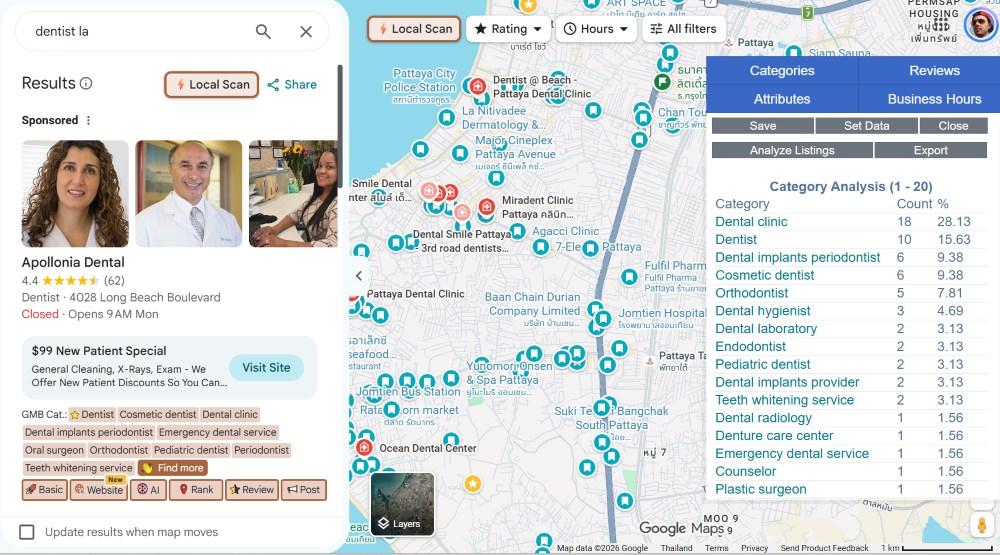
Public Google Maps listings display only one primary category. To discover the full list of additional categories used by top local competitors:
- Install a free Chrome browser extension: GMB Everywhere or PlePer Local SEO.
- Open Google Maps and find the three strongest competitors for your main search query.
- The extension will highlight the primary category in green and display the complete list of their additional categories.
- Use a similar combination if it accurately reflects the services your business provides.
3. Avoid Diluting Your Semantic Focus
A common mistake is adding all nine additional categories "just in case." For example, combining a beauty salon, tanning salon, massage studio, cosmetics store, tattoo studio, and piercing studio in one listing. Google's algorithm distributes the listing's relevance across all categories. As a result, the profile may lose rankings for its core service without reaching the top for secondary services. Limit your selection to 3–4 of your most profitable service areas.
Important - Don't change your primary category every two weeks just to experiment. Changing the primary category can disrupt accumulated behavioral trust and may cause your profile to require reverification, including a request for a video recording of your premises.
How to Change or Add Categories
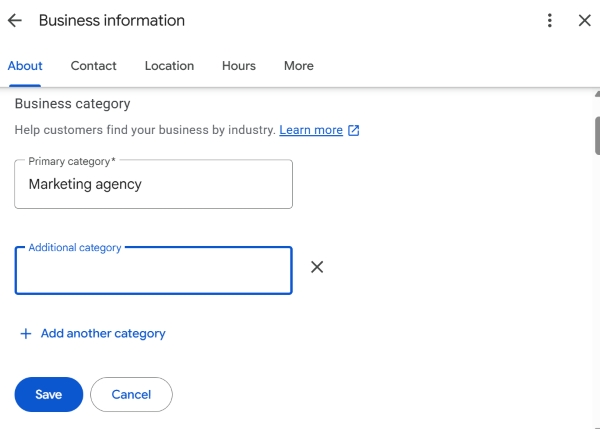
- While signed in to your business account, enter
my businessin Google Search. - Click the Edit profile button.
- Under the About tab, find the Business category field.
- Click the pencil icon next to the field -
- In the "Primary category" field, start typing a term and select the exact match from the drop-down list.
- Below, click Add another category and add 2–4 related service categories.
- Click Save. Changes typically take effect within 10–60 minutes.
Checklist: Correctly Configuring Business Profile Categories
Frequently Asked Questions
How many categories can you add to a Google Business Profile?
Google allows you to select one primary category and up to nine additional categories, for a maximum of ten categories in total. However, local SEO experts recommend choosing no more than 3–5 specific, highly relevant additional categories to avoid diluting the listing's search relevance.
Can I create my own category name if the right one isn't listed?
No. Google Maps categories must be selected from Google's predefined category list. If there is no exact match, choose the closest relevant general category and describe your specific services in more detail in the "Services" section using custom service entries.
- The primary category is the main lever for improving your Google Maps listing's search relevance.
- Choose your category carefully: a specific category that accurately reflects your business is generally more effective than a broad, generic one.
- Use specialized extensions to analyze the categories of leading competitors in your niche, and avoid overloading your profile with unnecessary secondary categories.
Having trouble choosing the primary category for your business?
Leave a list of your services and your city in the comments. We'll help you select the ideal combination of categories from Google's official list to maximize your reach.